









We've all been there. You're standing in the cereal aisle, phone in one hand, trying to scroll through three different conversations: one with your partner, one with your mum, one that's just a jumble of voice notes: trying to piece together what you actually need to buy. You get home. You forgot the eggs. Again.
The Shopping List module in Nook is built to fix exactly that.
One list, for everyone in your household
The Shopping List lives inside Nook alongside your other planners, which means it's always there when you need it: no switching between apps, no separate login, no hunting for the right shared note.
You can build your list item by item, organise things into categories (produce, dairy, cleaning, and so on), and check things off as you go. If you share your Nook space with a partner or flatmate, you're both looking at the same list in real time.
The best shopping list is one everyone in your household can actually find and use, not buried in someone's Notes app.
No more doubling up on pasta. No more "I thought you were getting that."
Grouped by category so the shop makes sense
A flat list of 30 items is hard to work from. You end up zigzagging across the shop, doubling back, missing things tucked between other items.
The Shopping List lets you group items into categories, so when you're in the dairy section, everything you need from dairy is right there together. When you move to produce, same thing. The shop becomes a series of short, completable steps rather than one overwhelming scroll.
A typical list might look like this:
- Produce: spinach, cherry tomatoes, lemons, garlic
- Dairy: oat milk, Greek yoghurt, cheddar
- Bakery: sourdough, wraps
- Household: washing-up liquid, bin bags
- Frozen: peas, edamame
Tick an item off and it moves out of the way. The list stays clean and readable as you work through it.
How to start your first list
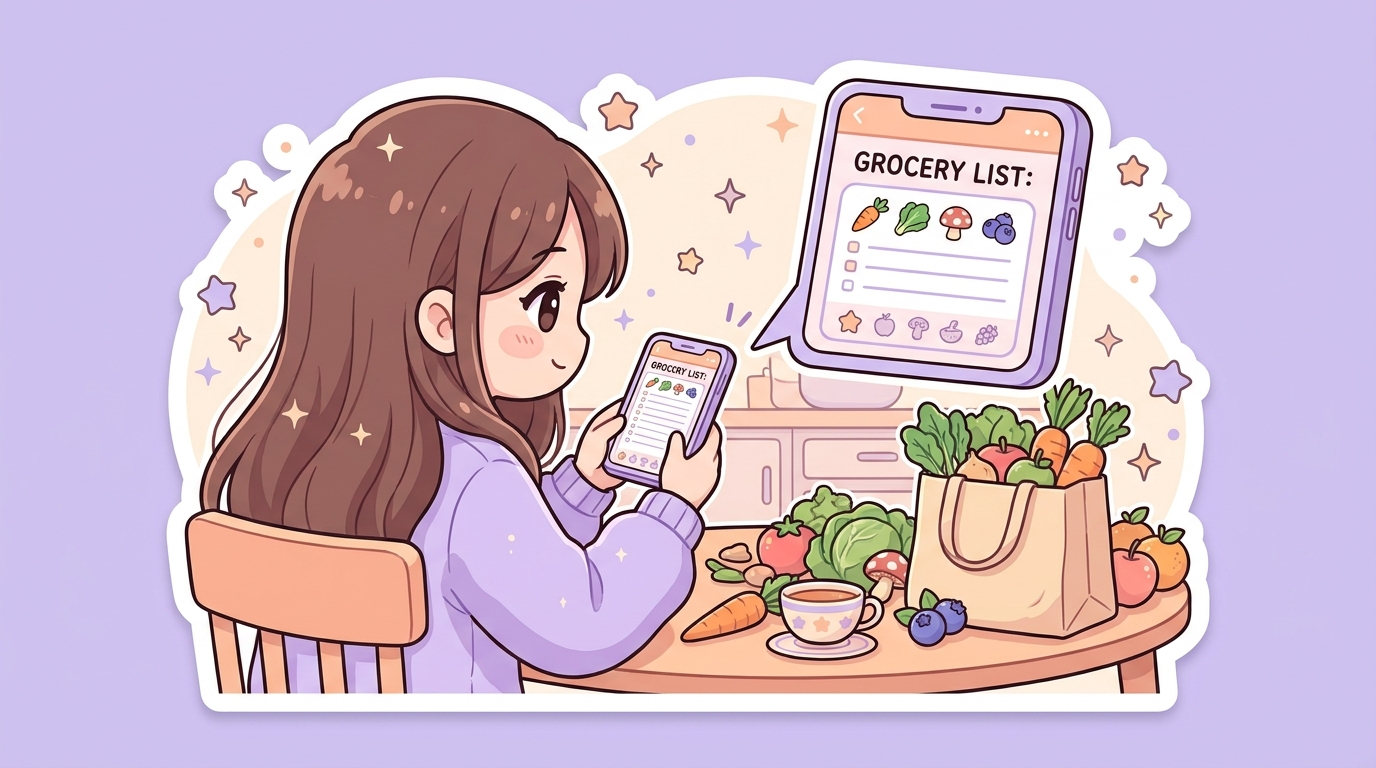
Getting started takes about two minutes:
- Open Nook and go to Lists in the sidebar
- Add a new list and select Shopping List as the type
- Give it a name and an optional description, then confirm
- Start adding items, each item can be assigned to an existing category or a new one you create on the spot
That's it. No templates to configure, no setup required.
A calmer approach to everyday life
The Shopping List might seem like a small thing compared to, say, planning a wedding or tracking your plants. But the small, weekly things are often where the friction lives. A chaotic grocery run, a forgotten ingredient, a duplicate purchase: none of these are disasters on their own, but they add up.
Keeping your shopping list in the same place as the rest of your life planning means one less thing to think about. And that's what Nook is for.
Nook is free to try for 7 days, no card required. If you're already a member, Lists is available now: just look for it in your sidebar.